 Help Center
In Caction, the Sign-Off and Feedback feature allows you to digitally capture customer acceptance and satisfaction ratings directly on your Digital Forms (Service Reports, Quotation, etc.).
Instead of relying on paper signatures, this feature provides a secure, digital verification that the job has been completed to the customer's satisfaction. It combines the legal acknowledgment of a signature with the qualitative data of a star rating or feedback comment.
Navigate to the section by clicking it.
- Benefit of Collect Digital Sign-Offs & Feedback
- How to sign and give feedback (Mobile Phone)
- How to sign and give feedback (Desktop)
- Generating PDF Copy
Why Collect Digital Sign-Offs & Feedback?
Going digital makes life easier for your team and your customers. Here are the top 4 reasons why:
- Proof the Job is Done: A digital signature is clear proof that the work is finished and the customer is happy. It stops arguments later on because you have a permanent record that can't be lost like paper.
- Easy for Customers: Customers can sign on their own phone or computer without needing to meet you in person. It’s quick, convenient, and looks professional.
- Know What Customers Think: You don't just get a signature; you get a star rating. This helps you instantly see if a customer is happy or if there is a problem, so you can fix it right away.
How to sign and give feedback (Mobile Phone)
In Person with Customer
- Open the Caction app on your mobile device.
- Navigate to the relevant Digital Form that requires your signature and feedback.

3. Scroll down until you see the "Customer Feedback" section or click on it at the top.

4. Rate the technician's service in the provided rating area.
5. Sign in the designated signature space. If you make a mistake, click on the “CLEAR” button to clear the signature box and try again.
6. If applicable, use the camera icon to take a photo of your company stamp and enter your name if required.
7. Click “SAVE” to submit your feedback.

Remote Signature
-
Open the Digital Form.
2. Scroll down until you see the "Customer Feedback" section or click on it at the top.
3. Select the method to send the link (e.g., WhatsApp, Email).

4. The Customer's View:
-
-
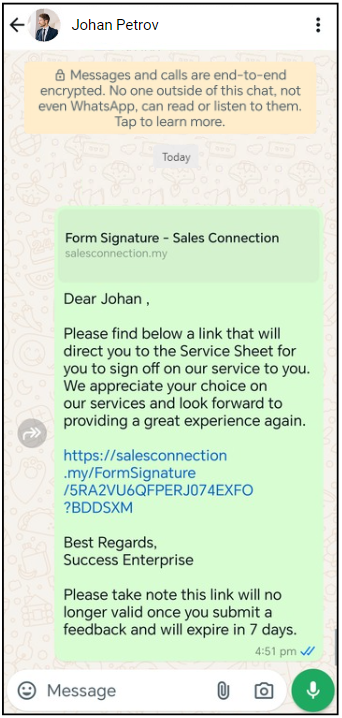
The customer receives a link.
-
They click the link to open the form in their browser. (Note: They do not need a Caction account to do this).
-
They review the details, rate the service, sign, and submit.
-
How to sign and give feedback (Desktop)
Open Link Directly
1. Open the specific Digital Form.
2. Click the More Options button (three dots ... ) and Locate the section labeled "Get Signature/Feedback".
3. Select "Copy to Clipboard" from the menu.

4. Open a new tab in your web browser.
5. Paste the link and hit Enter.
6. Review the details, rate the service, sign, and submit.

Remote Signature
1. Open the specific Digital Form.
2. Scroll to the Signature section.

3. Click Get Signature/Feedback.

4. Click Send Whatapp/Email.
5. The Customer's View:
-
-
The customer receives a link.
-
They click the link to open the form in their browser. (Note: They do not need a Caction account to do this).
-
They review the details, rate the service, sign, and submit.
-
Generating PDF Copy
Once the form is signed and completed, you can generate a professional PDF version to send to the client or keep for your records.
On Mobile App:
-
Open the Details Page of your completed Digital Form.
-
Locate and tap the "Generate PDF" button.

3. Review the preview to ensure all details are correct.
4. Tap Generate PDF to confirm.

5. Once processing is complete, the PDF will appear on the Details Page. You can then open it to download or share directly via WhatsApp or Email.

On Desktop:
- Open the Details Page of your completed Digital Form.
- Click the More Options button (three dots ... ).
- Select "Generate PDF" from the menu.

4. Review the preview to ensure all details are correct.
5. Tap Generate PDF to confirm.

6. You can now download or email the document.

Related Articles